Part of the Copilot Chat for Real Work Series
If you’re an administrative assistant, chances are you’re juggling a little bit of everything.
Calendars. Emails. Meeting notes. Follow-ups. Reminders. Procedures. The random “Can you help me with this?” requests that somehow become your responsibility.
The good news? You don’t need to be an AI expert to get real value from Copilot Chat.
In fact, some of the best uses are also the simplest.
This article focuses on practical ways administrative assistants can use Copilot Chat to save time, communicate more clearly, and stay organized—without learning complicated prompts or purchasing additional software.
In This Article
- What Is Copilot Chat?
- Quick Win #1: Turn Rough Notes Into a Professional Email
- Quick Win #2: Create Checklists for Recurring Tasks
- Quick Win #3: Summarize Long Instructions
- Quick Win #4: Write Better Procedures
- Quick Win #5: Prepare for Meetings Faster
- Biggest Mistake People Make
- Challenge for This Week
- Final Thoughts
What Is Copilot Chat?
Copilot Chat is Microsoft’s AI assistant that can help you:
- Draft content
- Rewrite emails
- Summarize information
- Organize thoughts
- Brainstorm ideas
- Create checklists and procedures
Think of it as a helpful assistant for your assistant role.
The key is knowing what to ask.
Quick Win #1: Turn Rough Notes Into a Professional Email
We’ve all been there.
Someone walks into your office and says:
“Can you send something out telling everyone the conference room won’t be available Wednesday because the flooring company is coming in?”
Instead of staring at a blank email, try:
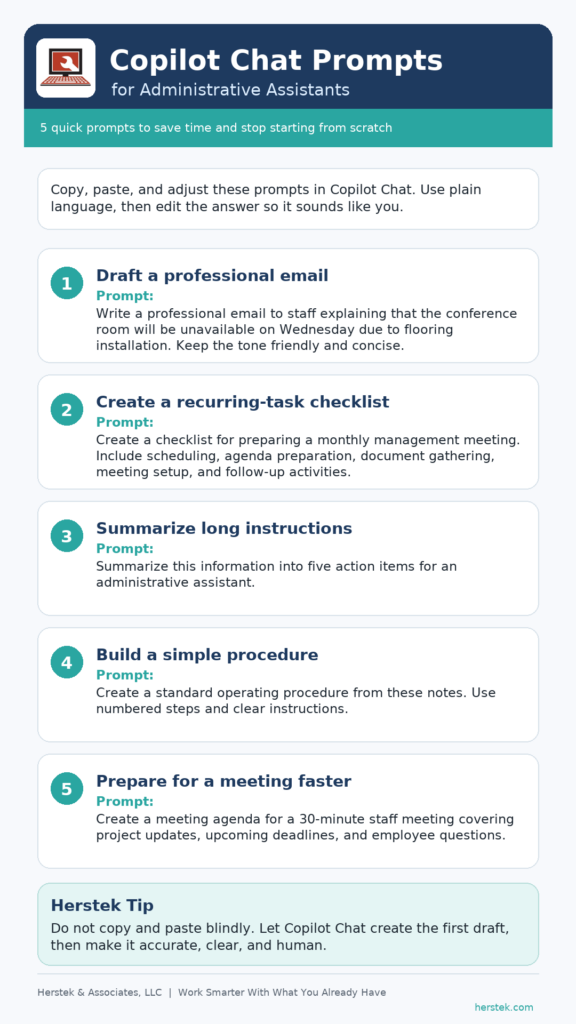
Prompt
Write a professional email to staff explaining that the conference room will be unavailable on Wednesday due to flooring installation. Keep the tone friendly and concise.
You’ll get a solid draft in seconds.
Herstek Tip
Don’t copy and paste blindly.
Use Copilot Chat to create the first draft, then make it sound like you.
Quick Win #2: Create Checklists for Recurring Tasks
Administrative assistants often do the same tasks repeatedly:
- New employee onboarding
- Monthly reports
- Meeting preparation
- Client onboarding
- Event planning
Instead of creating a checklist from scratch, try:
Prompt
Create a checklist for preparing a monthly management meeting. Include scheduling, agenda preparation, document gathering, meeting setup, and follow-up activities.
You’ll often discover steps you forgot—or opportunities to standardize the process.
Quick Win #3: Summarize Long Instructions
Sometimes someone sends a five-paragraph email when five bullet points would have been enough.
Paste the content and ask:
Prompt
Summarize this information into five action items for an administrative assistant.
Or:
Convert this email into a simple checklist.
This works especially well when you’re handling requests from multiple departments and need a quick way to identify the actual tasks.
Quick Win #4: Write Better Procedures
Most offices rely on at least a few “tribal knowledge” processes.
You know—the things only one person knows how to do.
Copilot Chat can help document those steps.
Prompt
Create a standard operating procedure from these notes. Use numbered steps and clear instructions.
Paste your notes afterward.
You’ll still need to review the content, but you’ll save significant time on formatting and organization.
Quick Win #5: Prepare for Meetings Faster
Need to coordinate a meeting?
Try this:
Prompt
Create a meeting agenda for a 30-minute staff meeting covering project updates, upcoming deadlines, and employee questions.
Or:
Generate follow-up action items from the following meeting notes.
Copilot Chat can help turn informal notes into organized action plans.
The Biggest Mistake People Make
Many employees think they need the perfect prompt.
They don’t.
Start with plain language.
If you’d ask a coworker:
“Can you turn this into a professional email?”
You can ask Copilot Chat the same thing.
The best prompt is often the simplest one.
One Challenge for This Week
Choose just one task you perform repeatedly.
Maybe it’s:
- Sending meeting reminders
- Creating agendas
- Writing internal announcements
- Updating procedures
Use Copilot Chat for that task once this week.
If it saves you even 10 minutes, that’s 10 minutes you didn’t have before.
And small time savings have a way of adding up.
Final Thought
One of the reasons I’m writing this series is because I’m still learning too.
Like many employees, I wear several hats throughout the day—administrative work, billing, marketing, client communication, and everything in between.
Copilot Chat won’t do your job for you.
But it can help you spend less time starting from scratch and more time focusing on the work that actually matters.
And that’s a win for anyone trying to work smarter with what they already have.