Part of the Work Smarter With What You Already Have series
If you’ve ever searched for Microsoft Planner vs To Do and ended up more confused than when you started, you’re not alone.
Many small businesses don’t have a productivity problem.
They have an organization problem.
Tasks live in email.
Reminders live on sticky notes.
Projects live in spreadsheets.
Appointments live on calendars.
And somewhere in the middle of it all is that one employee trying to keep everything moving.
I know because I am that employee.
On any given day, I might be answering customer questions, working on billing, updating a webpage, following up on marketing projects, scheduling appointments, and helping coordinate internal tasks, and all the other responsibilities that somehow find their way onto the same desk—I understand the struggle.
That’s probably one reason this topic resonates with me so much.
Like many employees, I’ve looked at Microsoft 365 and wondered:
- Do I put this in Planner?
- Should this be a task?
- Does this belong on my calendar?
- Why are there four different places to put things?
The good news?
Once you understand the purpose of each tool, they actually work together really well.
The challenge is figuring out where each one fits.
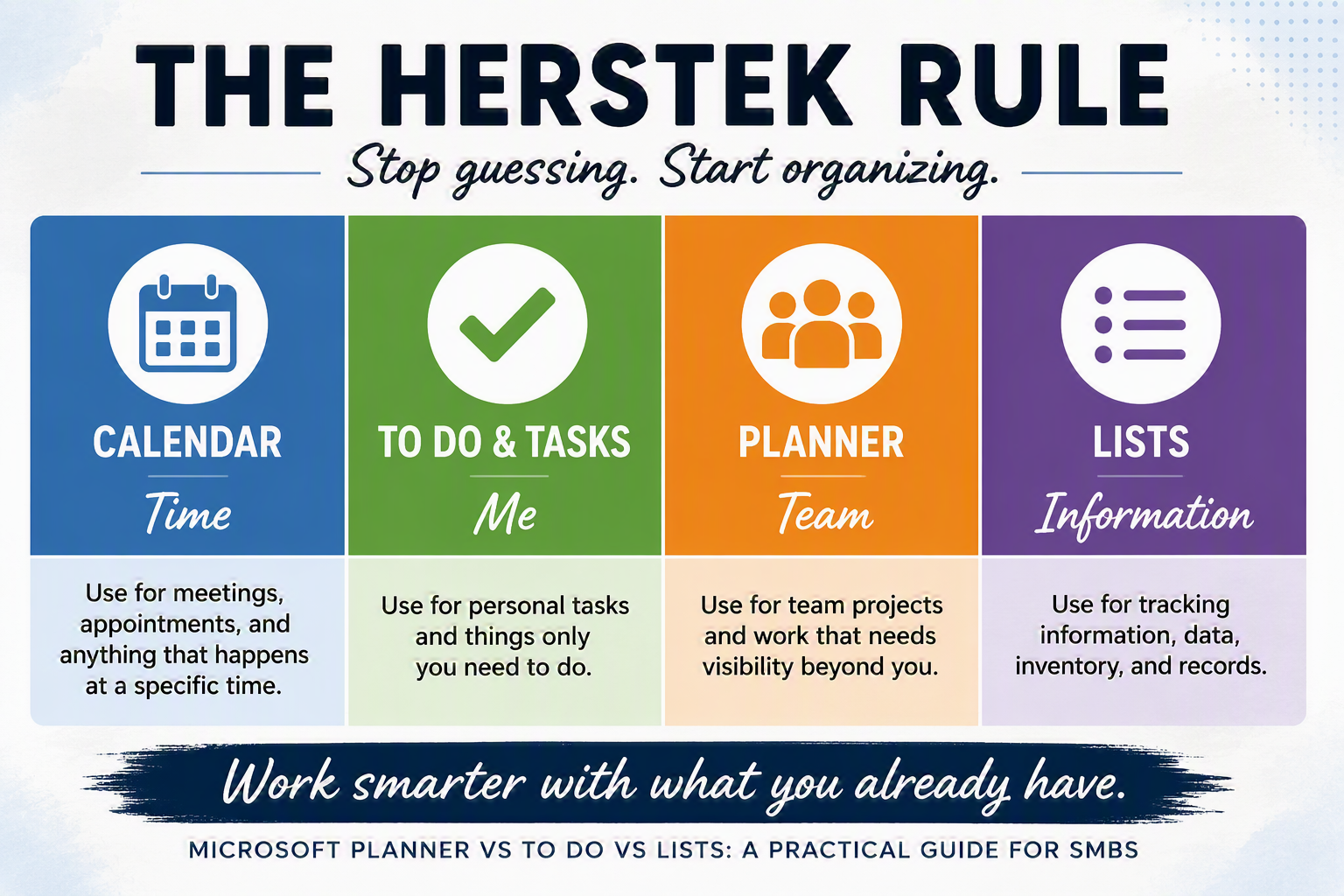
The Herstek Productivity Rule
When you’re not sure where something belongs, use this rule:
Calendar = Time
To Do & Tasks = Me
Planner = Team
Lists = Information
If it happens at a specific date and time, use Calendar.
If only you need to do it, use To Do.
If multiple people need visibility, use Planner.
If you’re tracking customers, assets, inventory, vendors, requests, or other business data, use Lists.
This simple rule solves most of the confusion people experience with Microsoft 365.
Quick Answer
If you’re wondering which Microsoft 365 tool to use:
| Tool | Purpose |
|---|---|
| Calendar | Time |
| To Do & Tasks | Me |
| Planner | Team |
| Lists | Information |
Honestly, if you remember nothing else from this article, remember that table.
Everything else is just explaining why.
The Question I Ask Myself
Whenever something new lands on my desk, I ask myself four simple questions:
Is this a meeting?
→ Calendar
Is this information?
→ Lists
Is this my task?
→ To Do (or Tasks)
Is this a team task?
→ Planner
That’s it.
I don’t start by asking which Microsoft application to use.
I start by asking what I’m actually trying to manage.
The answer usually tells me where it belongs.
We Are All Still Learning
If you’ve read my LinkedIn article, The Real Reason Employees Aren’t Using Your Technology, you know I believe most employees are not resisting technology.
They’re trying to understand how it fits into an already busy workday.
Read: The Real Reason Employees Aren’t Using Your Technology
Most of us are learning while we’re working.
We’re answering emails.
Helping customers.
Paying bills.
Scheduling appointments.
Updating websites.
Managing projects.
And somewhere in between all of that, we’re expected to learn a new application.
Then just when we finally figure it out…
Microsoft moves a button.
Renames a feature.
Changes the interface.
Adds a new app.
Or combines three apps into one.
And suddenly we’re learning all over again.
If you’ve ever found yourself saying:
“Wait…where did that go?”
“Didn’t this used to be somewhere else?”
“I just learned the old version!”
Congratulations.
You’re having a completely normal Microsoft 365 experience.
That’s one of the reasons I wanted to write this article—not as someone who knows everything, but as someone learning right alongside everyone else.
Because let’s be honest, by the time we finally figure out where everything is, Microsoft is already getting ready to change it again.
The Aha Moment
For years I thought Microsoft was giving us multiple versions of the same thing.
Tasks.
To Do.
Planner.
Lists.
Calendar.
Why did I need all of them?
Then it finally clicked.
These weren’t competing tools.
They were specialized tools designed for different jobs.
Once I stopped trying to make one application do everything, Microsoft 365 started making a lot more sense.
Wait…What About Tasks?
If you’re confused about the difference between Tasks, To Do, and Planner, you’re not alone.
In fact, this is one of the biggest sources of confusion for Microsoft 365 users.
For years, Outlook had a feature called Tasks.
Today, Microsoft To Do has become the primary personal task management experience for many Microsoft 365 users.
That’s why people hear terms like:
- Tasks
- To Do
- Planner Tasks
- Assigned Tasks
- Flagged Emails
And start wondering if they’re all different things.
The easiest way to think about it is this:
To Do and Tasks = My Work
Examples:
- Follow up with a customer
- Send an invoice
- Review a proposal
- Return a phone call
Planner = Team Work
Examples:
- New employee onboarding
- Website redesign
- Marketing campaign
- Client implementation
The important question isn’t where the task originated.
The important question is:
Who needs to see it?
If only you need visibility, use To Do.
If the team needs visibility, use Planner.
That distinction alone eliminates much of the confusion.
What About Flagged Emails?
Let’s talk about the productivity system most SMB employees are actually using.
Their inbox.
I’ve done it.
You’ve probably done it too.
A customer emails a request.
You flag it.
Then another email gets flagged.
And another.
And another.
Before long, your inbox becomes your task list.
There’s nothing wrong with using flags as a reminder that something needs attention.
The mistake is leaving the work there forever.
I try to think about email this way:
Email is where work arrives.
It shouldn’t be where work lives forever.
If a flagged email represents a personal action item, move it into To Do.
If it becomes part of a larger project, move it into Planner.
Your inbox becomes a lot less stressful when you stop treating it like a filing cabinet, reminder system, project board, and task manager all at the same time.
What Is the Difference Between Microsoft Planner and To Do?
This is probably the question I hear most often.
Microsoft To Do
To Do answers:
What do I need to do?
Examples:
- Call a client
- Review a proposal
- Send an invoice
- Follow up on an email
These are your personal responsibilities.
Microsoft Planner
Planner answers:
What does the team need to do?
Examples:
- Website redesign
- New employee onboarding
- Marketing campaign
- Client implementation
Planner adds visibility.
Everyone can see:
- What needs to be done
- Who owns it
- What’s completed
- What’s overdue
If only you need to see the task, use To Do.
If the team needs to see the task, use Planner.
Where Calendar Fits
Calendar answers one simple question:
When does this happen?
Use Calendar for:
- Meetings
- Appointments
- Training sessions
- Vacation schedules
- Time blocking
- Deadlines that require time on your schedule
One of the biggest mistakes I see is turning a calendar into a giant task list.
If your calendar contains:
- Call customer
- Review contract
- Update website
- Follow up on invoice
You’re probably using the wrong tool.
Those belong in To Do.
Where Lists Fits
Lists answers:
What information are we tracking?
Use it for:
- Customer records
- Vendor databases
- Asset tracking
- Equipment inventories
- Employee directories
- Service requests
If you’ve ever built a spreadsheet just to keep track of information, there’s a good chance Microsoft Lists may be a better fit.
The easiest way to remember it:
Planner tracks work.
Lists track things.
One manages action.
The other manages data.
A Real Example From My Workday
A few years ago, a request like this would have lived entirely in my inbox.
A customer sends an email asking for website changes.
I flag it.
Maybe I add a reminder.
Maybe I create a calendar appointment.
Maybe I write it on a sticky note.
A week later I’m searching for where I put it.
Now the workflow looks more like this:
Lists
Stores:
- Customer information
- Contact information
- Project information
Planner
Creates tasks:
- Write content
- Review content
- Create graphics
- Publish changes
To Do
Shows me the work assigned to me.
Calendar
Holds the review meeting and deadline.
Nothing complicated.
Just putting things where they belong.
Before vs. After
Before
- Customer request in an email
- Reminder on a sticky note
- Deadline on a calendar
- Project tracked in a spreadsheet
- Follow-up written in a notebook
Everything technically existed.
But nothing was connected.
After
- Information tracked in Lists
- Team work managed in Planner
- Personal work tracked in To Do
- Meetings and deadlines scheduled in Calendar
The amount of work didn’t change.
The amount of searching did.
How These Tools Work Together
Many SMBs try to pick one tool.
The better approach is to use all four for their intended purpose.
Plain Text
Customer Request
↓
Lists
(Track Information)
↓
Planner
(Organize Team Work)
↓
To Do
(Personal Work)
↓
Calendar
(Meetings & Deadlines)
Show more lines
That’s not four separate systems.
That’s one workflow.
When Outlook Becomes Mission Control
Let’s be honest.
Most employees live inside Outlook.
That’s where emails arrive.
That’s where meetings happen.
That’s where most of the workday starts.
The fewer places employees need to check, the more likely they are to actually use the tools available to them.
And if you’ve ever wondered why employees struggle to adopt new software, that’s often the answer.
Not because they hate technology.
Because they’re trying to keep up with work while learning where everything lives.
NEW: Planner Is Coming Directly Into Outlook
One of the more exciting developments for SMB users is Planner’s integration into Outlook.
Why does this matter?
Because context switching is expensive.
Every time users need to:
- Open another browser tab
- Find Planner
- Locate the correct plan
- Return to Outlook
They lose time and focus.
The simpler the experience becomes, the higher adoption tends to be.
If You Only Set Up One Planner Feature, Make It This One
One of my favorite Microsoft 365 productivity tips is connecting Planner and To Do.
Planner assignments can appear in the Assigned to Me view.
To enable it:
- Open Microsoft To Do
- Open Settings
- Enable Assigned to Me
- Enable Planner under Connected Apps
Now instead of checking multiple locations, you have one place to see your upcoming work.
Don’t Try to Implement Everything at Once
One mistake I see businesses make is trying to roll out every productivity tool at the same time.
You don’t have to.
Start Here
- Outlook
- Calendar
- To Do
Get comfortable first.
Then Add
- Planner for team projects
Then Add
- Lists for information tracking
The goal isn’t to build the perfect system overnight.
The goal is simply to be a little more organized than you were yesterday.
Small improvements add up quickly.
Which Tool Should I Use?
| Scenario | Best Tool |
|---|---|
| Call a customer | To Do |
| Follow up on an invoice | To Do |
| Team project | Planner |
| Employee onboarding | Planner |
| Marketing campaign | Planner |
| Client meeting | Calendar |
| Vacation schedule | Calendar |
| Equipment inventory | Lists |
| Customer database | Lists |
| Vendor records | Lists |
Frequently Asked Questions
What is the difference between Planner and To Do?
To Do is for personal task management.
Planner is for team task management.
What is the difference between Tasks and To Do?
Think of To Do as the modern personal task management experience in Microsoft 365. Many users who previously worked with Outlook Tasks now manage those personal tasks through To Do.
Should I use Planner or Lists?
Use Planner to manage work.
Use Lists to manage information.
Should tasks go on my calendar?
Usually no.
Tasks belong in To Do or Planner.
Meetings belong in Calendar.
Can Planner tasks appear in To Do?
Yes. Planner tasks assigned to you can appear in the Assigned to Me view.
Where Does OneNote Fit?
OneNote is best for notes, meeting notes, research, process documentation, ideas, and reference information.
Think of it this way:
- Calendar manages time
- To Do manages personal work
- Planner manages team work
- Lists manage structured information
- OneNote manages notes and knowledge
What About Microsoft Loop?
Loop is designed for collaborative planning, brainstorming, and shared workspaces.
I’m still exploring where it fits into the average SMB workflow, so stay tuned for a future article dedicated to Loop.
What About Microsoft Teams?
That’s a much bigger discussion than I can cover here.
The real question isn’t how to use Teams.
It’s when to use Teams instead of email.
That’s a future article all by itself.
Is Microsoft Planner Replacing To Do?
No.
They serve different purposes and work best together.
Related Reading
If you enjoyed this article, you may also like:
10 Hidden Outlook Features That Can Save SMBs Time
Many of the Outlook features discussed there work extremely well alongside Planner, To Do, Tasks, and Lists.
Final Thoughts
Am I an expert on every Microsoft 365 productivity tool?
Absolutely not.
I’m still learning new features, new integrations, and better ways to work every week.
And just when I think I’ve figured something out, Microsoft decides it’s time to move a button, rename a feature, redesign an experience, or introduce something new.
That’s technology.
We’re all learning.
What I’ve discovered is that productivity became a lot less complicated when I stopped trying to make one application do everything.
Calendar handles time.
To Do and Tasks handle personal work.
Planner organizes team work.
Lists track information.
Once I understood those roles, Microsoft 365 stopped feeling like a collection of applications and started feeling like a system.
And honestly, that’s the real goal.
Not perfection.
Not using every feature.
Not becoming a Microsoft expert.
Just making it easier to find what you need, manage your work, and stay organized.
Because most SMBs don’t need more software.
They need fewer places to look.
And that’s how you truly Work Smarter With What You Already Have.