
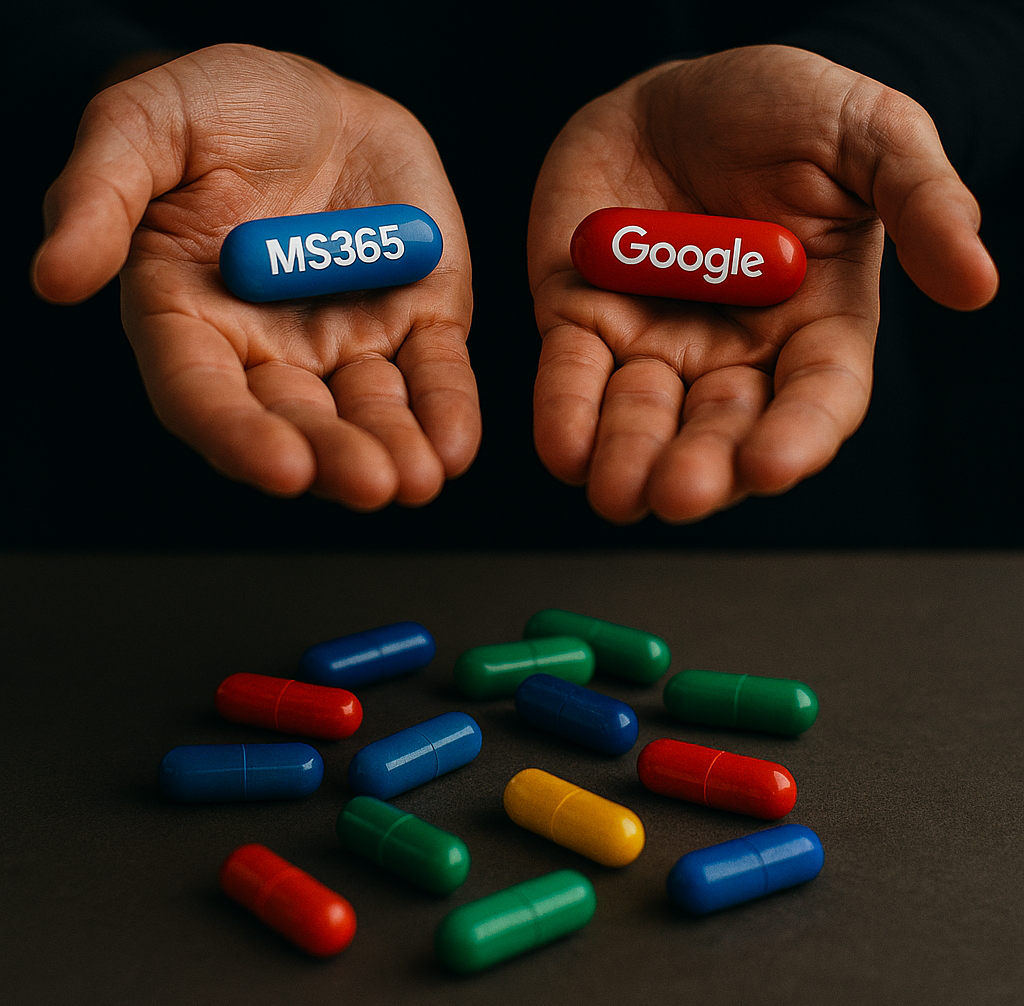
You’re juggling clients, donors, board meetings, and snow‑day schedules in Northeast PA. You don’t need tech‑speak—you need tools that help your team write, meet, share, and protect sensitive info without headaches. This plain‑English guide, tailored for SMBs and nonprofits, helps you choose between the Blue Pill (Microsoft 365 + Copilot) and the Red Pill (Google Workspace + Gemini).
Neither pill will make budget season fun, but both can help you get your numbers and notes done faster—without another “reply‑all” marathon.
The Quick Vibe Check (No Jargon)
- Blue Pill – Microsoft 365 + Copilot
Best for teams already using Outlook, Word, Excel, PowerPoint, and Teams. Copilot shows up inside those apps to help draft proposals, build slides, summarize email threads, and recap meetings—while staying within your organization’s permissions and data boundaries. - Red Pill – Google Workspace + Gemini
Best for cloud‑first teams that live in Gmail, Docs, Sheets, Slides, Drive, and Meet. Gemini helps you write faster, suggests spreadsheet formulas, creates visuals, and can take meeting notes in Google Meet. It’s light, quick, and works great in the browser—plus caption/translation features reduce friction in bilingual conversations.
SMB Scenarios (Short & Practical)
Blue Pill — Microsoft 365 + Copilot
- Client Proposals, Fast
Your account manager opens Word and asks Copilot to “draft a client proposal from last quarter’s winning deck and recent emails.” Copilot pulls the right talking points, then helps turn it into a clean PowerPoint—fewer tabs, fewer rewrites. - Inbox Triage Without Drama
Monday morning: 62 unread emails. Copilot in Outlook summarizes long threads, highlights decisions needed, and drafts polite replies. Your team gets back to customers faster and puts the real issues on the calendar in Teams. - Numbers That Tell a Story
In Excel, your operations lead uploads last month’s sales and asks Copilot to “spot trends and create a chart.” Copilot explains the trend in plain words and adds the chart to your QBR deck—ready for a client meeting. - Field Laptop Guardrails
Your estimator works from job sites. Device/data safeguards help prevent accidental copying to USB or printing sensitive spreadsheets from public machines.
Red Pill — Google Workspace + Gemini
- Quick Writing in the Browser
Your owner opens Docs and tells Gemini, “Write a first draft of our spring promo email.” Gemini creates a friendly draft, your team edits it, and it’s out the door via Gmail—no juggling attachments. - Meetings That Produce Real Notes
In Google Meet, “Take notes for me” captures action items and neatly stores them in Drive, attaching the notes to your Calendar event. No more guessing who promised what. - Bilingual Client Calls
Your service coordinator hosts a call with a bilingual family. Caption/translation helps everyone follow along, and Gemini’s summary makes next steps clear. - Simple, Safe Sharing
Your office manager shares a Drive folder with a contractor. Document‑level rules can block downloading/printing if the device isn’t trusted or access occurs from an unexpected location—easy collaboration, reduced risk.
Nonprofit Scenarios (Short & Practical)
Blue Pill (Microsoft 365 + Copilot)
- Board packets & grants: Draft proposals in Word while Copilot pulls highlights from last year’s documents and board minutes; spin a slide deck in PowerPoint and get email summaries in Outlook—without juggling apps.
- Sensitive donor data: Built‑in controls help prevent downloading/printing sensitive lists on the wrong device.
- Volunteer‑friendly: Teams meeting recaps make it easy for board members and volunteers to catch up quickly.
Red Pill (Google Workspace + Gemini)
- Community meetings: “Take notes for me” in Google Meet captures actions and drops them into Drive—then attaches notes to your Calendar event for easy follow‑up.
- Bilingual outreach: Caption/translation features in Meet help bridge language gaps during partner or client calls.
- Lightweight sharing: Docs, Sheets, and Slides are simple to share; file rules can stop risky downloading/printing when conditions aren’t met.
For Leaders: What Really Matters
- Risk & Compliance
- Blue Pill: Strong built‑in protections for sensitive donor/client data; helpful audit trails for grants and financial reporting.
- Red Pill: Simple, browser‑based controls for sharing/downloading; ideal for online collaboration with quick guardrails.
- Team Adoption
- Blue Pill: Familiar Office tools mean less resistance; AI feels like an upgrade, not a new system.
- Red Pill: Easy for teams already living in Gmail/Docs; minimal training—just start typing and let Gemini help.
- Productivity Impact
- Blue Pill: AI pulls from your org’s files/emails to create proposals, reports, and meeting summaries—reducing prep time for board packets or client decks.
- Red Pill: AI shines in meetings and quick drafting; great for nonprofits/SMBs that rely on collaboration and bilingual communication.
- Future Growth
- Blue Pill: Scales well if you plan to add more compliance or device management later.
- Red Pill: Perfect for lean teams that want simplicity and speed without heavy IT overhead.
FAQ: Your Top Questions Answered
Q1: Do we need to be “tech experts” to use these tools?
No. If your team can send emails and edit documents, you can use the AI helpers. Setup might need a little help—but that’s where partners like H&A come in.
Q2: Will AI replace my staff?
No. AI assists—it drafts, summarizes, and organizes so your people can focus on strategy, donors, and clients.
Q3: Which option is better for nonprofits?
If you already use Microsoft tools for board packets and grant writing, Blue Pill fits naturally. If your nonprofit thrives on quick collaboration in Google Docs and Meet, Red Pill may feel easier.
Q4: What about security?
Both are strong. Microsoft offers deep device and data controls—great for sensitive donor info and compliance. Google provides smart browser rules for sharing/downloading—ideal for cloud‑first teams.
Q5: Can we mix and match?
You can, but it’s simpler to pick one ecosystem for consistency and staff training.
Q6: How do we start without disrupting work?
Start small. Enable AI for the roles that need it most (grant writers, client‑facing staff). Expand as you see real results.
Quick Checklist
Check the statements that match your organization.
✅ More checks in Blue → lean Microsoft 365 + Copilot
✅ More checks in Red → lean Google Workspace + Gemini
✅ Blue Pill (Microsoft 365 + Copilot)
- We already use Outlook, Word, Excel, PowerPoint, Teams
- Sometimes our internet is spotty—we still need to work (desktop apps help)
- We want AI to pull from our files, emails, and meetings to draft and summarize
- We handle sensitive donor/client data and need strong device controls
- We prefer one place for security and record‑keeping
✅ Red Pill (Google Workspace + Gemini)
- We work mostly in the browser (Gmail/Docs/Sheets/Drive)
- Meetings drive our week—automatic notes would help a lot
- We collaborate in multiple languages (captions/translation)
- We need document‑level rules (block download/print/copy) when conditions aren’t met
- We want a simple, cloud‑first setup
Pros & Cons (Plain English)
Blue Pill Pros:
✔ Familiar tools, strong security, AI summaries and drafting.
Cons: Setup needs planning; may need IT help.
Red Pill Pros:
✔ Easy browser access, auto meeting notes, translation support.
Cons: Limited offline work; best with managed devices.
Need a Hand Choosing & Rolling This Out?
Herstek & Associates (H&A) can help you:
- Pick the right pill for your SMB or nonprofit
- Set up the suite with sensible guardrails
- Train staff and volunteers
- Keep sensitive info safe (donors, clients, partners)
And, Whichever pill you pick, just remember—unlike the Cross Valley Expressway at rush hour, these tools are designed to actually keep things moving.