Work Smarter With What You Already Have Series
Practical tips to help SMBs get more value from the tools they already own.
If your team uses Microsoft Outlook every day, there’s a good chance you’re only using a fraction of what it can do.
Most employees open Outlook to read email, send messages, and manage their calendar. Meanwhile, Microsoft has added dozens of productivity features that can help small businesses reduce inbox clutter, stay organized, and save time throughout the workday.
Whether you’re an office manager, business owner, executive assistant, or everyday Outlook user, these overlooked Outlook features can help you get more value from the Microsoft 365 tools you already pay for.
What Are Outlook Features?
Outlook features are built-in tools that help users manage email, tasks, calendars, and communication more efficiently. Features such as Quick Steps, Rules, Categories, and Schedule Send can help SMBs save time and reduce inbox clutter.
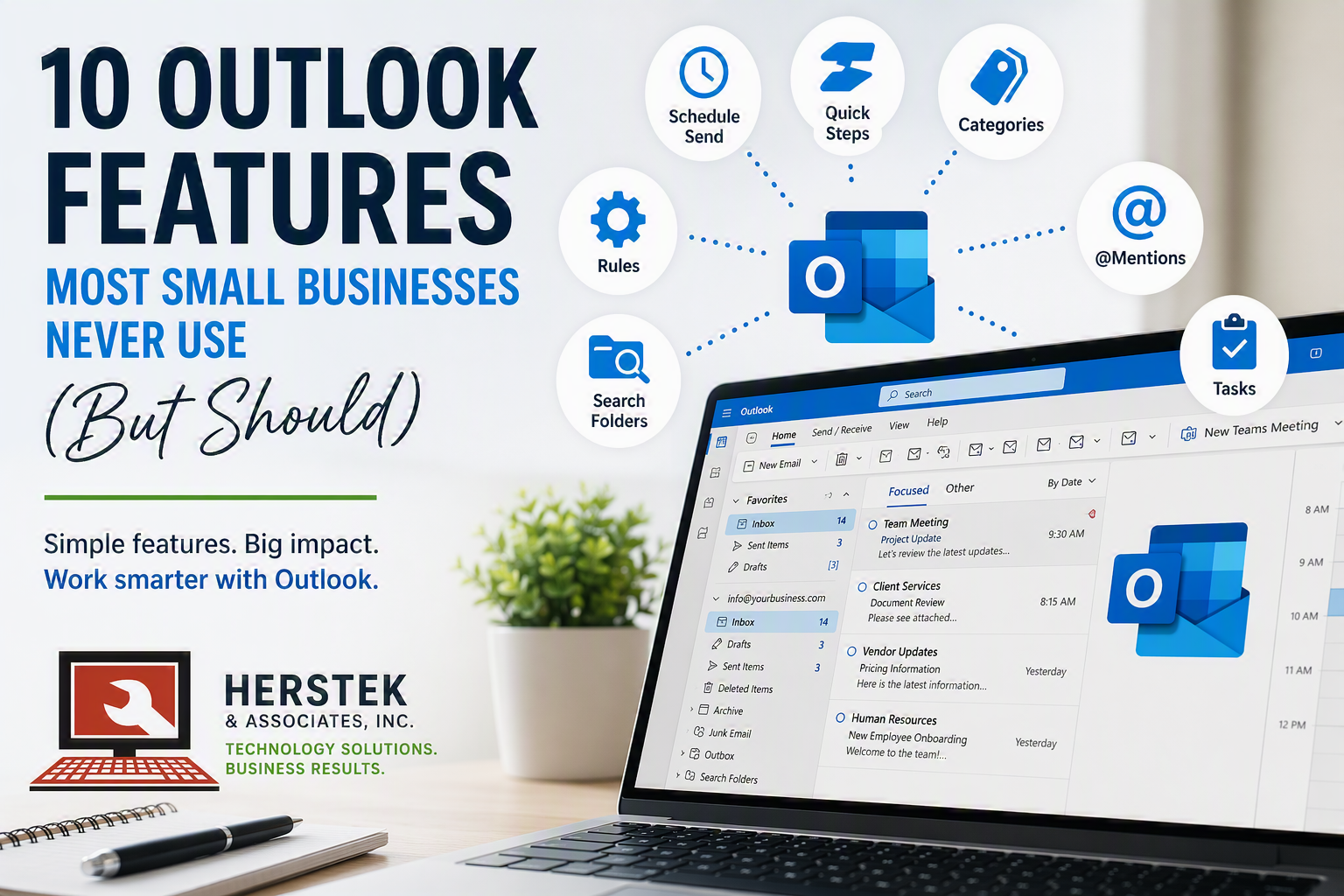
Here are ten Outlook features worth exploring if you’re already paying for Microsoft 365.
1. Schedule Send
2. Quick Steps
3. Categories
4. Pin Important Emails
5. @Mentions
6. Search Folders
7. Email Templates
8. Rules
9. Turn Emails Into Tasks
10. Ignore Conversation
1. Schedule Send
Ever write an email at 10:30 PM but don’t want people thinking you’re working at 10:30 PM?
Schedule Send lets you write now and send later.
Perfect for:
✅ Follow-ups
✅ Vacation prep
✅ Late-night productivity bursts
2. Quick Steps
If you find yourself performing the same actions over and over again, Quick Steps can help.
With one click you can:
✅ Move an email
✅ Mark it as read
✅ Categorize it
✅ Forward it
The less time you spend managing email, the more time you have to do actual work.
3. Categories
Folders tell you where something is stored.
Categories tell you what it’s related to.
For example:
🏢 Clients
📋 Projects
💰 Accounting
👥 HR
An email can belong to multiple categories at the same time, which makes finding things much easier later.
4. Pin Important Emails
Ever have an email you keep opening because you’re afraid you’ll lose it in your inbox?
Pin it.
Keep important information at the top where you can actually find it.
5. @Mentions
Need one specific person to respond?
Use @mentions in Outlook.
Instead of hoping someone notices an action item hidden inside a long email chain, Outlook highlights exactly who needs to pay attention.
6. Search Folders
We all search for the same things repeatedly.
Unread messages.
Flagged emails.
Specific clients.
Specific projects.
Search Folders create dynamic views so you’re not constantly digging through folders looking for information.
7. Email Templates
How many times have you written some version of:
“Just following up…”
Or:
“Can you send me…”
Or:
“Attached please find…”
Save it as a template.
Future You will be grateful.
8. Rules
This one has been around forever, but surprisingly few people use it well.
Rules can automatically:
✅ Move emails
✅ Flag messages
✅ Categorize communications
✅ Reduce inbox clutter
Think of it as your personal email assistant.
9. Turn Emails Into Tasks
Your inbox is not a task list.
Just because something arrived in your inbox doesn’t mean you’ll remember to act on it.
Flag important messages and connect them with Microsoft To Do so things don’t fall through the cracks.
10. Ignore Conversation
We all have that email thread.
The one with 47 replies.
The one where half the people clicked “Reply All.”
The one that somehow keeps growing.
If the conversation no longer applies to you, use Ignore Conversation and reclaim a little sanity.
Final Thoughts
Most small businesses don’t need more software.
They need to get more value out of the software they already own.
Pick one feature from this list and try it this week.
You might save yourself a few minutes every day.
And as most business owners know, a few minutes saved every day turns into a lot of time by the end of the year.
💡 More productivity. Less chaos.
Want More Microsoft 365 Productivity Tips?
Work Smarter With What You Already Have
Most businesses don’t need more software.
They need to get more value from the software they already own.
This article is part of our Work Smarter With What You Already Have series focused on Microsoft 365, Copilot, productivity, and practical SMB operations.
Frequently Asked Questions
Many small businesses find Quick Steps and Rules to be the biggest time savers because they automate repetitive email tasks and reduce inbox clutter.
Yes. Outlook integrates with Microsoft To Do, allowing users to flag emails, create tasks, and track follow-up items.
Yes. Outlook Rules can automatically move, categorize, flag, and process incoming emails based on conditions you define.
Most Microsoft 365 business subscriptions include Outlook as part of the productivity